
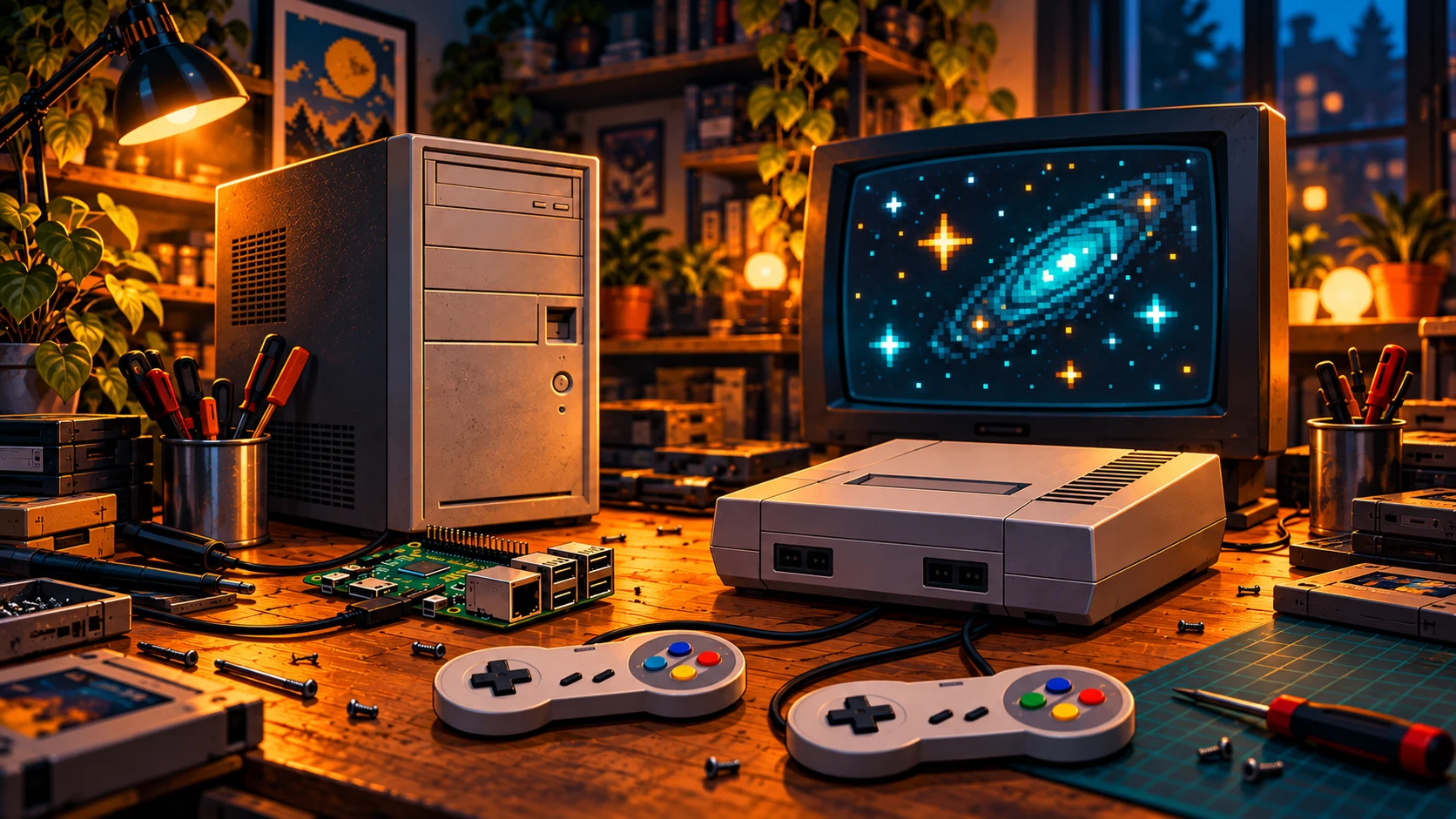
Got an old computer in the cupboard, or an empty NES case you can’t quite bring yourself to throw away? Imagine giving it a place beside the TV again. Two controllers on the coffee table. A high-score sheet. Someone asking for one more attempt before handing over the pad.
That’s a project worth getting excited about.
Pick the computer first
A working 64-bit office PC can be a candidate for Batocera, which puts retro gaming behind a controller-friendly menu. Check the exact processor and graphics support, then try it from a separate USB drive. Batocera’s installation guide recommends 32 GB of storage for full functionality, with more room needed for your game collection.
A Raspberry Pi running RetroPie is another route. A Pi 4 with the matching Pi 4/400 image is a documented example. You’ll need a microSD card, a suitable power supply and the right display cable. Match the image to your exact Pi model before buying anything.
Either way, start on the bench with a keyboard, one controller and a TV or monitor. Check picture, sound and button response before planning the enclosure.
Keep the controllers you love
An original NES pad has a different feel from a modern controller. You can keep that feel using a purpose-built controller-to-USB adapter. The open-source 4dapter project, for example, documents support for original NES, Super Nintendo, Sega Genesis and Nintendo 64 controllers. Choose the correct firmware and map the buttons for your setup. Original controller wires don’t connect directly to USB; the adapter supplies the interface.
Prefer wireless? Put a compatible Bluetooth controller into pairing mode, register it through RetroPie’s Bluetooth menu, then configure its buttons. The computer needs supported Bluetooth hardware, built in or through an adapter. Test reconnecting and multiplayer before inviting everyone over.
How we would rebuild a console shell
For a personal console-shell project, we’d start with an already broken unit or empty replacement case. A working classic deserves to stay intact.
We’d test the Pi or suitably sized computer outside the shell, then plan secure board mounts, ventilation and access to storage. Short HDMI and USB extensions could bring connections to the back. A correctly rated external power supply would keep the enclosure’s wiring low voltage.
To preserve the front, we’d check whether the original controller sockets could connect through a compatible controller interface with verified wiring. The old power button would need a compatible shutdown interface rather than simply cutting power. Those details depend on the shell and board.
An NES, SNES, Genesis or N64 shell could become a compact retro machine with its own familiar controls. For a tabletop arcade cabinet, we’d use an enclosure designed around the screen and control panel instead.
Set it up and play
Back up first. Writing a Batocera or RetroPie image erases the selected USB drive or card; verify the destination carefully. Installing Batocera on the PC’s internal disk overwrites its contents too. Leave that disk alone for the first trial, and check the machine’s documentation before changing unfamiliar boot or security settings.
There’s no need to buy a preloaded ROM bundle. Begin with Batocera’s included freely distributable games, or homebrew supplied with permission for your setup. Check game and BIOS rights separately; owning a cartridge doesn’t automatically authorize an online copy. The U.S. Copyright Office explains the backup-copy limits.
Choose a handful of games and test them. Performance depends on the hardware, emulator and settings; N64 especially needs game-by-game checking. We’d build around the games you want, without promising every title works.
Then put the controllers within reach, write down the first high score and see who gets competitive.